How to Find Your Minecraft World Folder
Find the active Minecraft save folder on Windows, Mac, or Linux, check custom launcher instances, and distinguish Bedrock GDK storage from the old UWP path.
Updated 2026-10-03 · MapMC Editorial
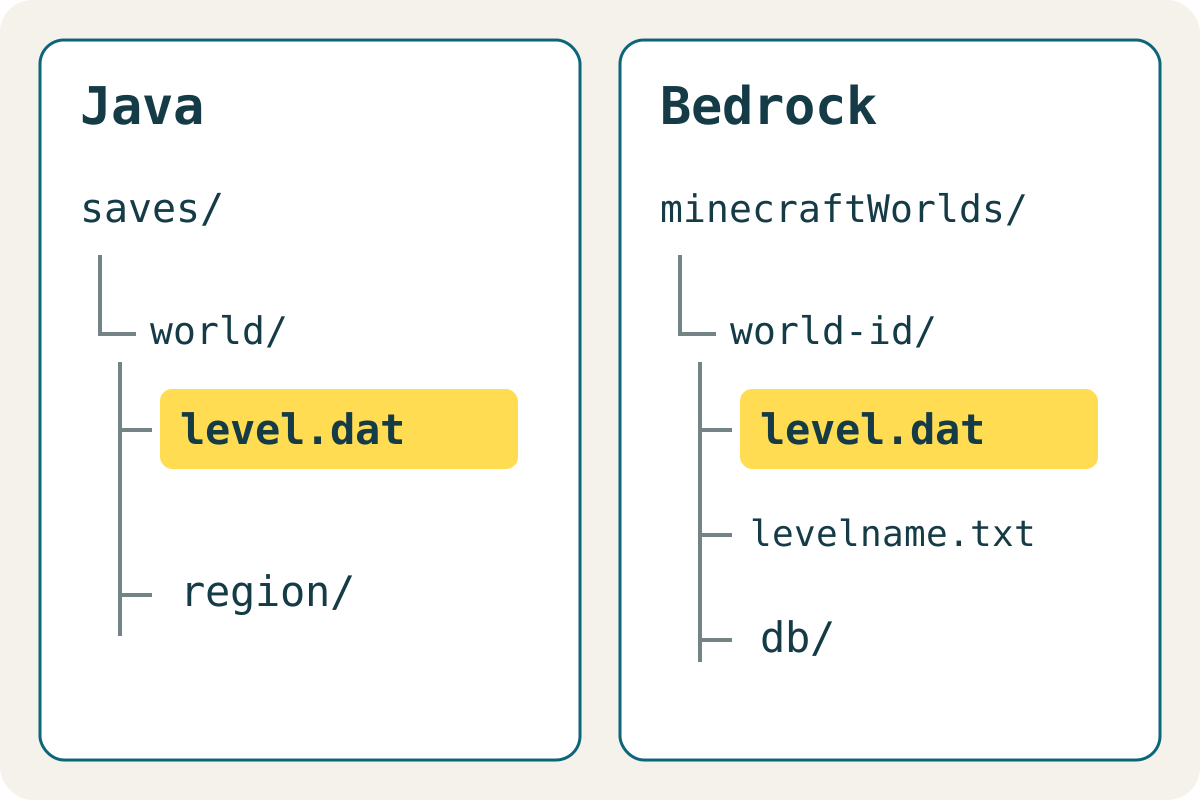
Java Edition: start with the saves folder inside the game directory for the installation you actually launch. Bedrock on Windows: current GDK builds and older UWP builds use different storage roots. Locate and inspect first; close Minecraft before copying, and keep the original untouched.
Java: open the default saves folder
These are starting points for a standard installation, not universal paths for every launcher. The original community directory reference documents the defaults and the custom-directory exception.
| System | Default Java saves folder | How to open it |
|---|---|---|
| Windows | %APPDATA%\.minecraft\saves | Paste into File Explorer's address bar and press Enter |
| macOS | ~/Library/Application Support/minecraft/saves | In Finder, press Command + Shift + G and paste the path |
| Linux | ~/.minecraft/saves | Open the path under your home directory; .minecraft is hidden |
On October 3, 2026, MapMC checked the macOS default directory and found existing worlds with level.dat directly inside each world folder. Windows and Linux defaults are documentation checks; they were not reproduced on those systems for this article.
Custom launchers: check the active instance first
A modpack or launcher profile may use a separate game directory. Inspect the instance or installation settings and locate its game directory or folder-opening action; exact labels depend on the launcher. Append saves to that directory. Do not assume that a busy default folder belongs to the profile you currently play.
If two folders contain the same world name, compare the active instance, known world icon and last modification time after a normal save and exit. Time is a clue, not proof: downloaded or copied worlds can retain older timestamps. Do not change the configured directory just to make a missing world appear.
Bedrock on Windows: distinguish GDK from UWP
Microsoft documents the Windows GDK storage migration starting with 1.21.120. The shared directory in that creator document holds shared development resources; do not assume it contains every player's worlds.
| Installation | Where to start looking |
|---|---|
| Current Windows GDK | %APPDATA%\Minecraft Bedrock\Users |
| Older Windows UWP | %LOCALAPPDATA%\Packages\Microsoft.MinecraftUWP_8wekyb3d8bbwe\LocalState\games\com.mojang\minecraftWorlds |
| Preview | Separate storage under Minecraft Bedrock Preview; do not mix it with the release game |
For GDK player worlds, inspect the account subfolders under Users, then games\com.mojang\minecraftWorlds. This account-specific location is corroborated by an accepted first-hand storage report; it is a location to verify on your installation, not a promise that one fixed account folder always exists. Missing or empty old storage does not prove a world was deleted. This article does not claim a Windows client reproduction or successful migration.
Recognize the world root, not its wrapper
Microsoft defines the world root as the folder containing level.dat. Typical examples:
saves/
└── MapMC-example/
    ├── level.dat
    └── region/
minecraftWorlds/
└── world-id/
├── level.dat
├── levelname.txt
└── db/Bedrock folder names may be opaque. Read levelname.txt without editing it; Microsoft's world-package reference identifies it as the world-name file. Do not edit level.dat or database files by hand. level.dat is a root check, not proof that the entire save is healthy.
Verify a copy before doing anything else
- Save, exit the world, and close the game. Record the Edition, active installation and full source path privately.
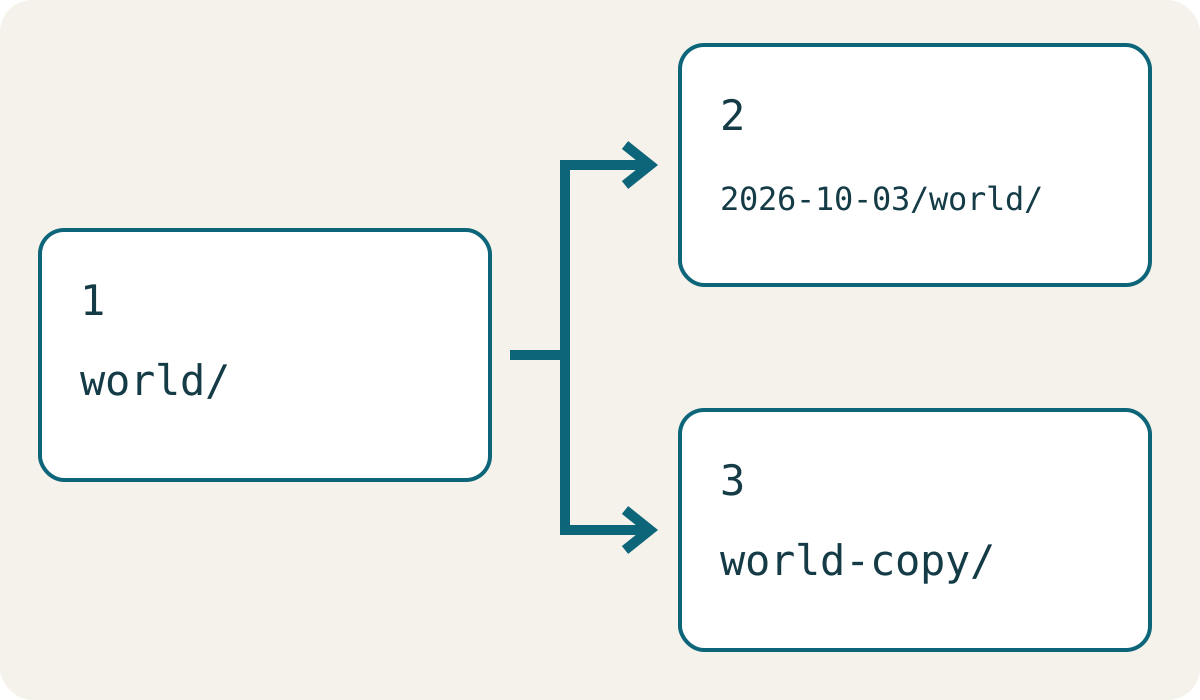
- Copy the whole world folder to a separate, dated location. Do not move it or copy just
regionordb. - Check that the destination is a real second folder, with the expected files and a plausible size. A shortcut to the original is not a backup.
- For playable verification, use the backup and restore guide to test another working copy in the matching Edition/version. Keep the original and backup out of that test.
If the folder is missing or access is restricted
- Check the Edition, OS user, launcher instance and Bedrock account before searching another storage root. Do not create an empty folder and treat it as recovered data.
- If the game lists a world but the folder is unclear, use its normal export or backup option when available. Stop before uninstalling, resetting app storage or merging unknown folders.
- Phone and console storage permissions differ from desktop. Do not apply a Windows path, bypass app permissions or assume access to console saves. Follow the iPhone/iPad file guide or the device-transfer guide.
- If a copy does not open, preserve it and the original; follow world-not-showing checks. Avoid repeated writes to the only remaining save.
Where a MapMC download fits
A browser download is a delivery file, not necessarily an installed save. Keep the original Java ZIP or Bedrock .mcworld and follow the matching import instructions. Renaming an extension does not convert Editions. MapMC generates new worlds from real places; it does not search your device for existing saves or recover deleted worlds. To create a new map, use the real-world Generator.
Sources and review basis
We use official documentation where available and show the references used for factual claims.