What should I check before downloading this Minecraft map?
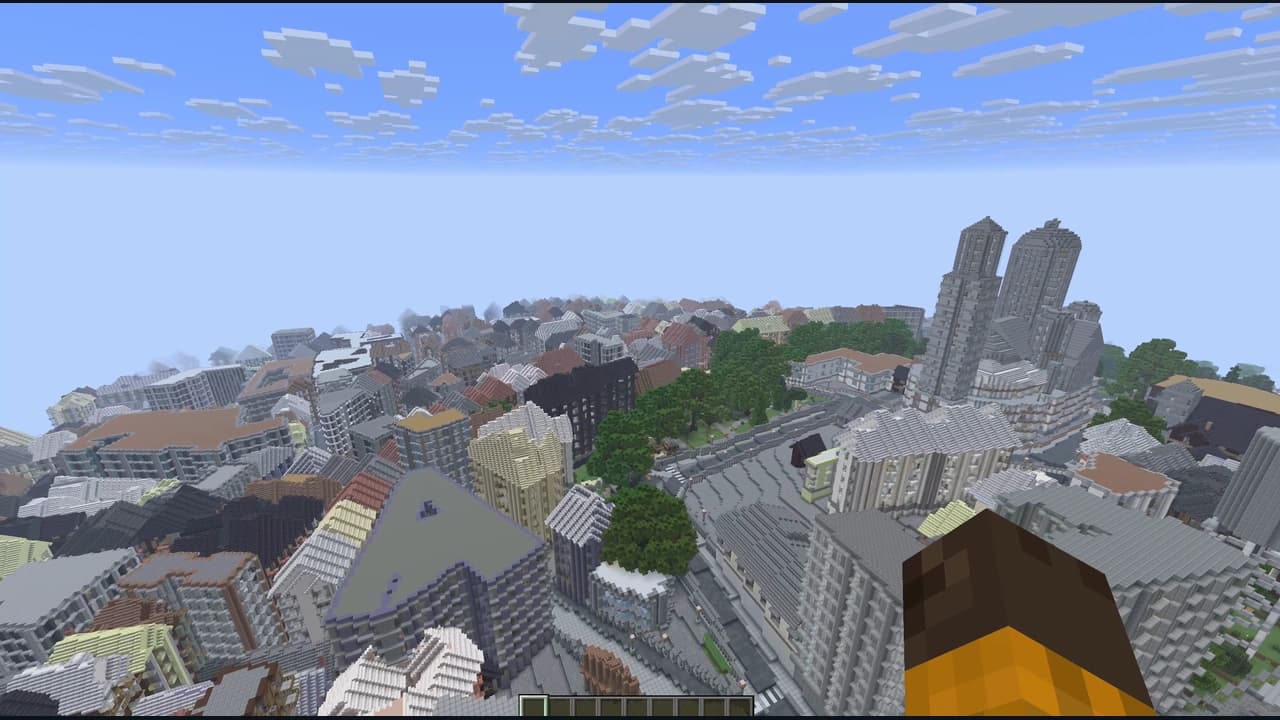
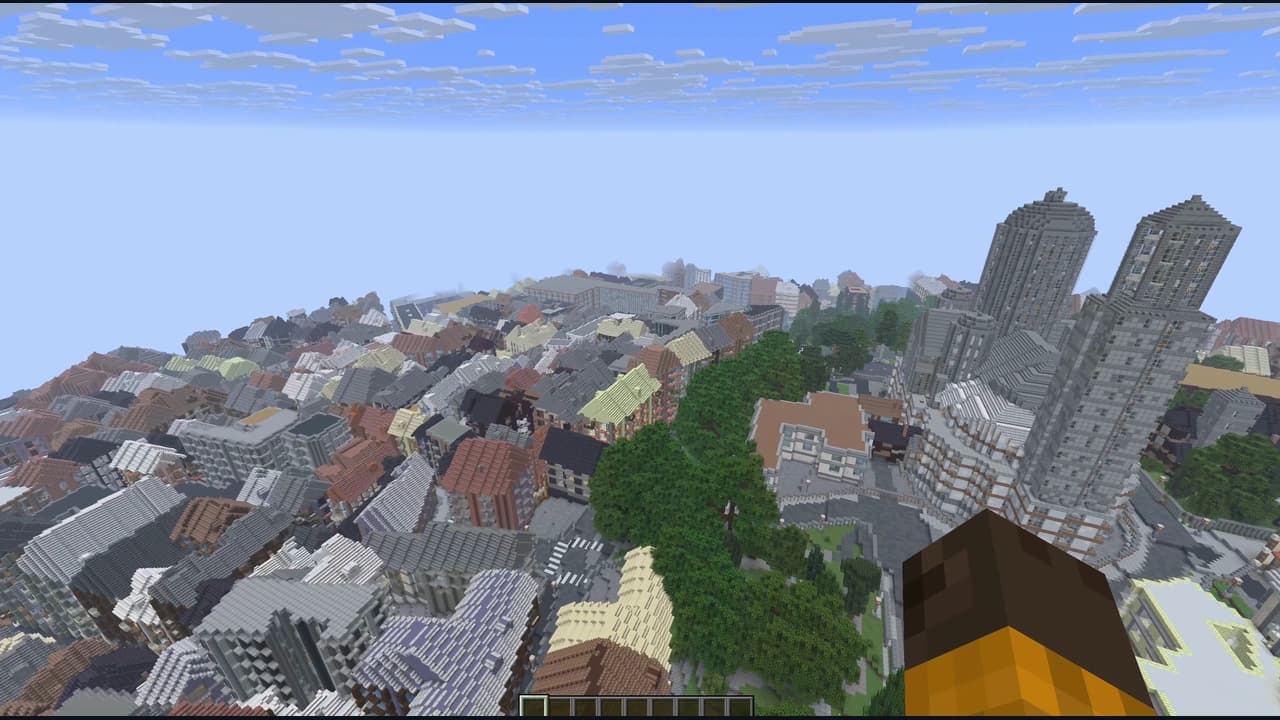
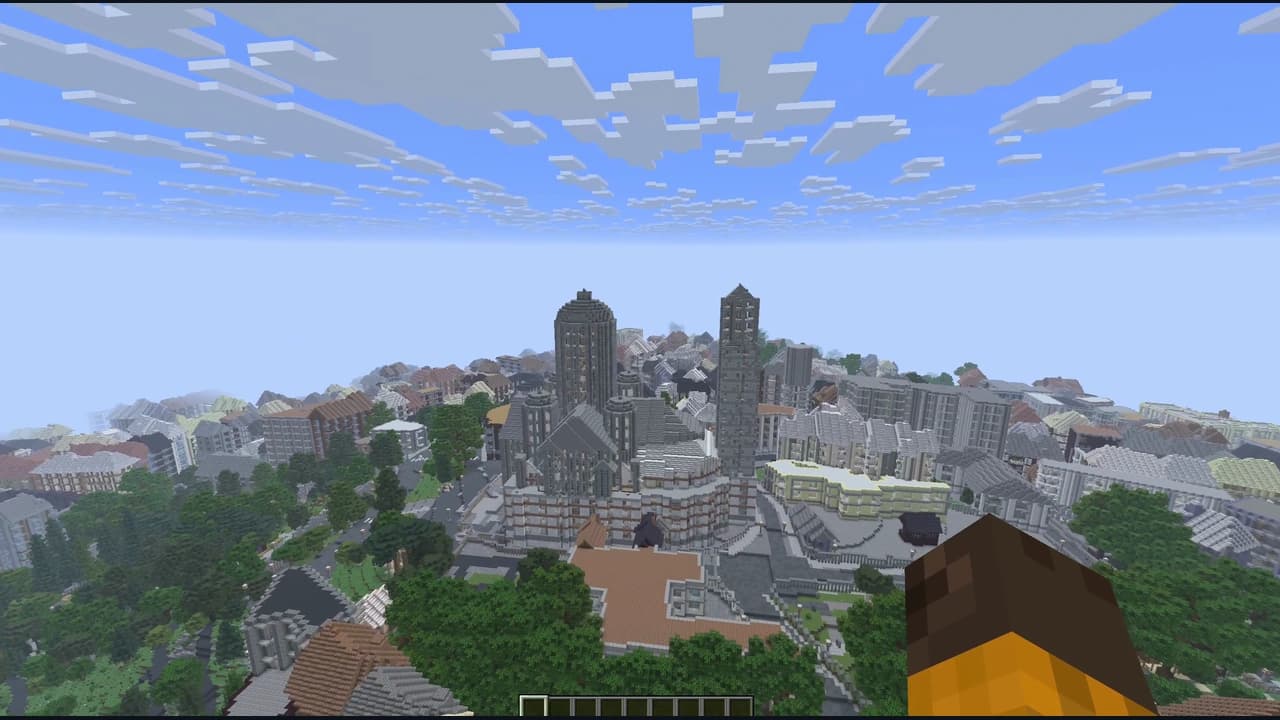
Start with the location, selected area, gameplay video and screenshots on this page. They describe the downloadable world, rather than a promise to recreate the entire city or every landmark detail. Compare the streets, terrain and surrounding vegetation with the type of world you want to explore. Read the edition and version information beside the download button, then check the listed file size and SHA-256 value. Keep enough storage for both the ZIP and its extracted world folder. The world uses map data; real building interiors, individual decorations and exact architectural proportions are not guaranteed.
Why does the downloaded world not appear in Minecraft Java?
Check the folder structure after extracting the ZIP. Minecraft needs a world folder containing level.dat directly inside the active Java profile's saves directory. An extra folder layer can hide the world from the single-player list. Close the game before moving files, use a new folder name, and avoid replacing an existing save. If you use several launcher profiles, confirm which game directory the chosen profile uses. Open the Java world-import guide linked on this page for the full process. A ZIP left unopened in Downloads is not yet an installed Minecraft world.
Can I open this Java ZIP as a Bedrock world?
This download is a Minecraft Java world, tested with the version and launcher shown on the page. It is not a Bedrock .mcworld file, and renaming the ZIP extension does not convert its world format. Bedrock import instructions apply to a package created for Bedrock, not to this Java ZIP. If you want to generate a different real-world area, the MapMC generator offers edition choices before creating a new world. Review that choice and the supported import path before paying. Console installation can involve platform restrictions; this download does not promise direct console import.
How should I test a newer Minecraft version safely?
Keep the original ZIP unchanged and make a separate copy of the extracted world before opening it in another game version. First launch a test copy with the Java version listed on this page, then inspect the areas visible in the gameplay footage. A newer version may upgrade the save when it opens. That upgrade can make returning to an older version unsafe, so retain an untouched backup. The recorded import check establishes the stated version and launcher only; it is not proof that every release, mod pack or custom server will behave the same way.
Can I use the Minecraft map on my Java server?
Treat the downloaded world as a separate server-world installation. Stop the server, back up its current world and configuration, and follow your server software's world installation instructions before changing the selected world directory. Do not overwrite a running server's files. Match the server edition and version to the package, and test a copy without unrelated plugins or mods if loading fails. Confirm that the server has selected the intended folder rather than creating a new empty world. The download supplies world files; it does not include server hosting, automatic deployment, user accounts or administration.