How to Import a Minecraft World Safely (Java and Bedrock)
Choose where you play Minecraft. Follow the steps below to import the map and open it.
Play your map in Minecraft
Choose your playing device
More detail and troubleshooting
Updated 2026-10-11 · MapMC Editorial
Make a working copy and keep the delivery file clean
Before importing, record the source, filename, file size, intended Edition, and Minecraft version named by the creator. Keep the untouched ZIP or .mcworld in a controlled folder. Perform extraction, renaming for clarity, and import attempts on a duplicate. A second shortcut to the same folder is not a backup.
Do not overwrite an existing world with a similar name. Make sure the destination has enough free space for both the package and the imported copy, and close Java Edition before moving a Java world folder. If the world matters, keep a separate dated backup and verify that the backup can be opened before changing versions, Mods, Add-ons, or server settings.
Use the original creator or MapMC delivery link where possible. A world download should not need an unrelated executable “repair” tool, account password, server token, or permission to disable normal device security. If the download came from a reupload and its Edition or provenance is unclear, stop and obtain a known copy.
Import a valid .mcworld into Bedrock Edition
These steps describe the generic Bedrock handoff checked against Microsoft Minecraft Creator documentation on August 12, 2026. Exact share menus and file associations vary by device.
- Duplicate the downloaded
.mcworldand leave the original unchanged. - From the system file manager or download list, open the copy with Minecraft. If the system asks for an app, choose Minecraft: Bedrock Edition only when it is a normal offered option.
- Let Minecraft finish the import. Do not close the game or delete the package while import is running.
- Open Play and find the new local world. Open it once, then verify the world name, spawn area, landmarks, and expected content.
If the operating system never offers Minecraft, first confirm that Bedrock Edition is installed on that device and that the filename still ends in .mcworld. Do not repeatedly extract and repackage the only copy. iPhone and iPad users should follow the Apple-specific related guide; console users should follow the current Realms or supported platform path rather than assuming direct local-file access.
Do not normally unzip a .mcworld. It is a Bedrock world package whose internal structure matters. Microsoft documents how a correctly prepared Bedrock archive can use the .mcworld extension, but that does not mean renaming a Java ZIP changes its Edition.
Import a Java world ZIP into the active saves directory
Java Edition reads world folders from the saves directory for the installation you actually launch. The official transfer guide documents %appdata%\.minecraft\saves on Windows and ~/Library/Application Support/minecraft/saves on macOS for standard installations. Linux commonly uses ~/.minecraft/saves. Treat these as starting points: custom launcher profiles, Modded instances, and a configured game directory can point somewhere else.
- Close the Java world and preferably Java Edition before copying files.
- Duplicate the ZIP and extract the duplicate into a new folder.
- Open the extracted folders until you reach the world root: the folder that directly contains
level.dat. A normal Java world also commonly has folders such asregion, butlevel.datis the decisive root check used by current Microsoft Minecraft documentation. - Open the
savesdirectory for the same launcher installation and profile you will start. If defaults and the active profile disagree, trust the active profile's game directory. - Copy the entire world-root folder into
saves. Give the copy a distinct folder name; do not merge it into an existing save. - Launch the intended Java version, select Singleplayer, and open the imported copy.
A Java ZIP is transport packaging, not a one-click Bedrock import. MapMC's current Worker packages the generated Java world-root contents into a ZIP for delivery; after extraction, the folder you place in saves must still be the direct parent of level.dat.
Check folder depth when Java cannot see the world
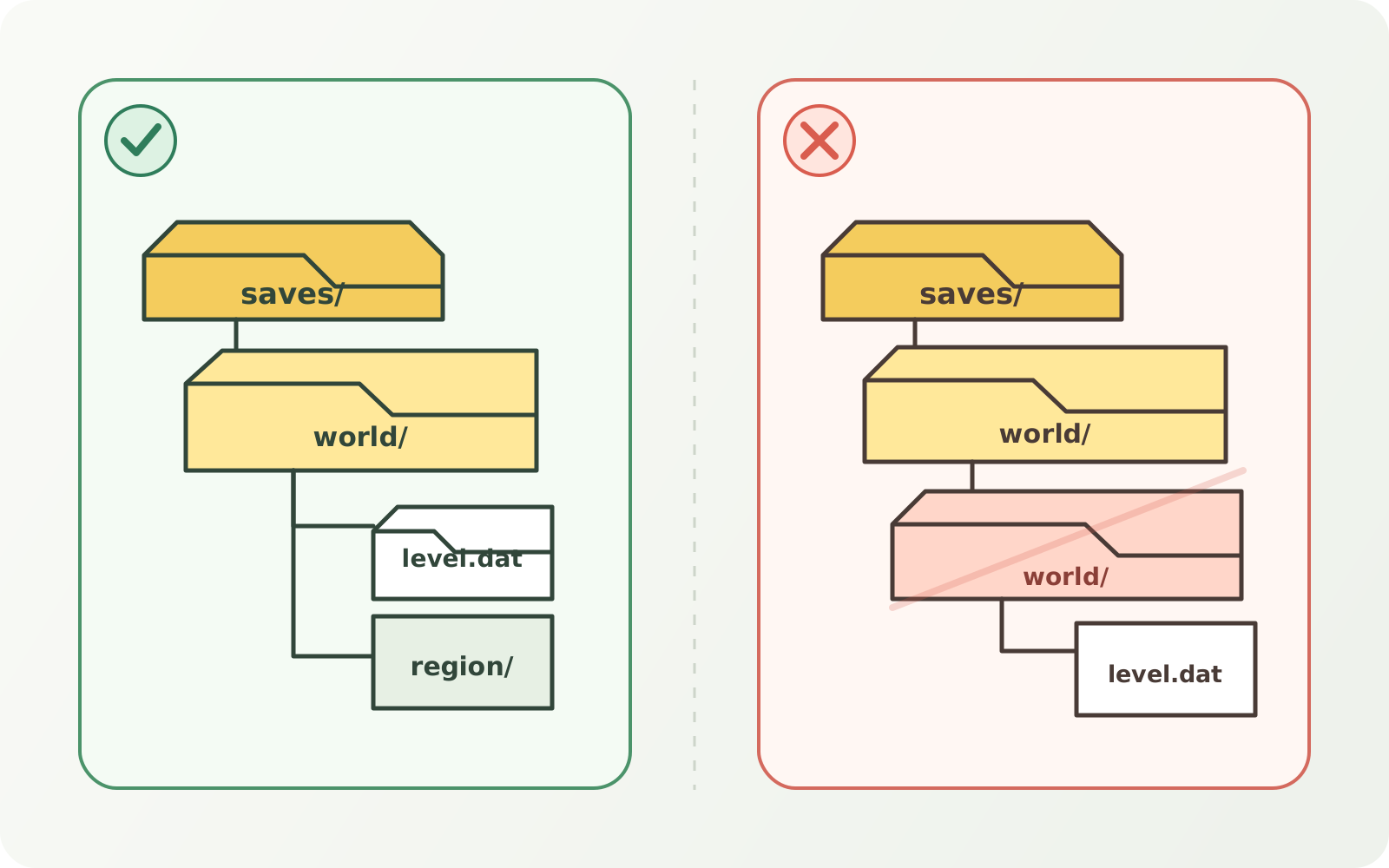
Folder depth is the most useful non-destructive Java check. This layout is visible to Java:
saves/
└── My Imported World/
    ├── level.dat
    ├── region/
    └── data/
This layout has an extra wrapper and usually will not appear as the intended world:
saves/
└── My Imported World/
    └── My Imported World/
        ├── level.dat
        └── region/
Move or copy the inner folder as a separately named world; do not delete the wrapper until the corrected copy opens. If no folder in the archive contains level.dat, stop. You may have an incomplete download, a Bedrock package, a server bundle, or something that is not a playable Java world.
Verify the imported copy before you build
“It appears in the list” is only the first check. Open the copy and compare known evidence from the source:
- world name and the Edition/version you launched;
- spawn area, recognizable terrain, structures, or recent builds;
- player position and inventory when the source says they should transfer;
- required Mods, Add-ons, resource packs, or experimental settings named by the creator;
- normal save-and-quit followed by one clean reopen.
For a MapMC world, inspect roads, coastline, elevation, and major landmarks before adding a long build. Keep the untouched delivery file, then create a second backup after the first successful launch. That gives you both a clean source and a known-playable restore point.
If Java asks to upgrade an older world, back up first and upgrade only the copy. Minecraft's official Java version guidance warns that opening a current world in an older version can permanently damage it; never test a downgrade on the only working save.
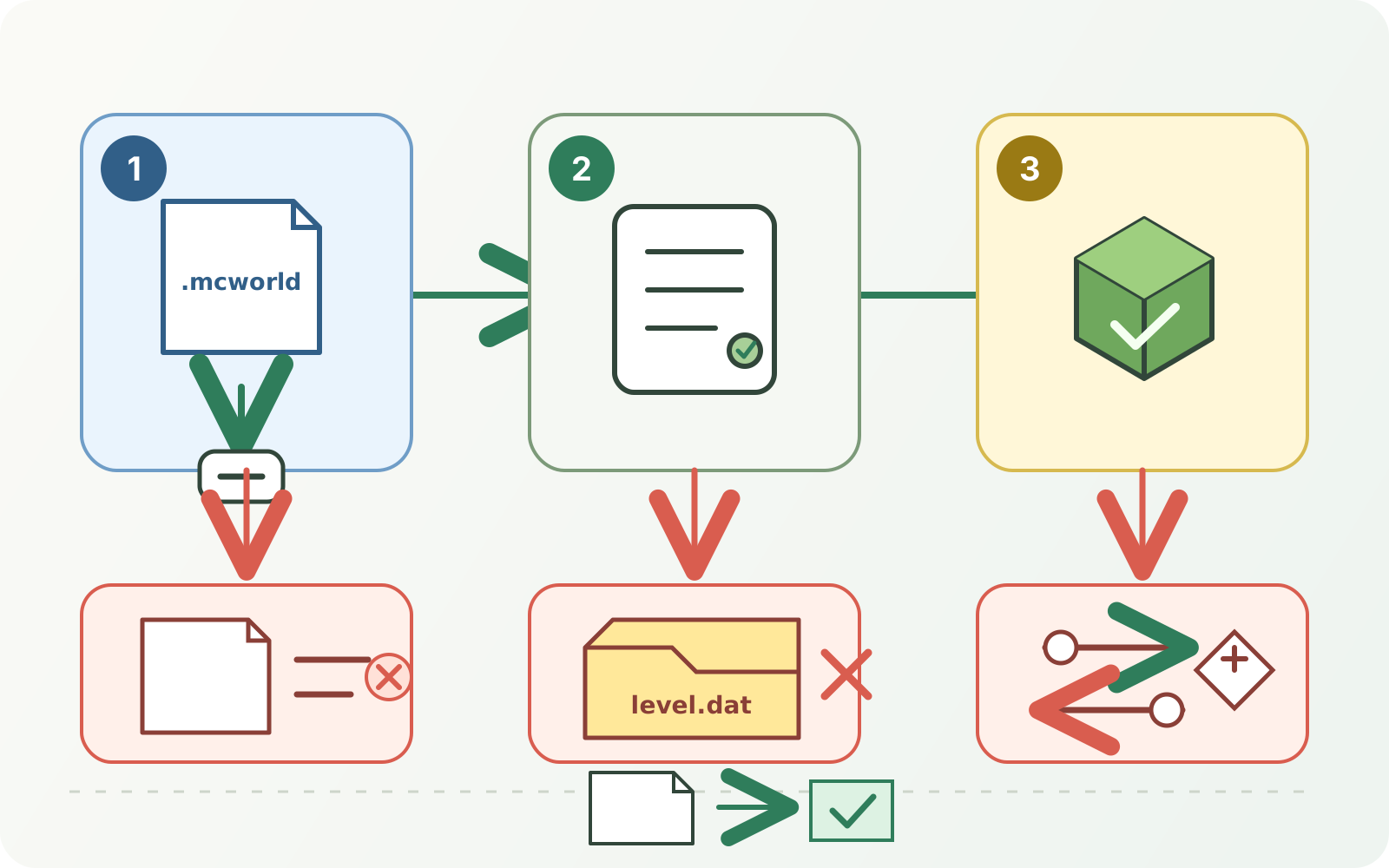
Diagnose the stage that failed
Change one variable at a time. The stage tells you which branch to follow:
| Symptom | Check first | Safe action | Do not do |
|---|---|---|---|
The system will not open .mcworld with Minecraft | Bedrock installation, unchanged extension, supported local-file flow | Preserve the package and use the device-specific guide | Install an unknown handler or unpack the only copy |
| Bedrock starts but reports an import failure | Download integrity, package provenance, storage, Edition | Obtain a clean copy from the source and retain the exact error | Keep renaming or repackaging without knowing the expected root |
| Java world never appears in Singleplayer | Active game directory, folder depth, direct level.dat parent | Copy the correct root into the matching profile's saves | Delete other saves or merge folders |
| World appears but cannot load | Version, required content, exact error, and known-good backup | Test another copy in the intended environment and use the troubleshooting guide | Downgrade or “repair” the only world |
| A second world or the wrong world opens | Names, spawn, landmarks, source file, and timestamps | Keep both copies until you identify the verified one | Delete by name alone |
The related “world not showing” guide owns deeper diagnosis. Server import, Realms replacement, and device transfer are also separate tasks because their permissions, storage, and rollback paths are different.
Understand the MapMC delivery boundary
MapMC currently generates the Edition selected for the job and delivers a Java world as ZIP or a Bedrock world as .mcworld. The service does not include Minecraft, convert one Edition into the other, repair arbitrary saves, host a Realm or server, or recover files deleted from your device.
Choose the correct Edition before generation when possible. After download, keep the original, import a working copy through the matching path, and verify it before customization. If Edition and device do not match, return to the job or product choice rather than disguising one format as another.
Frequently asked questions
Can I rename a Java ZIP to .mcworld?
No. A valid Bedrock .mcworld is packaged for Bedrock, but changing the filename of a Java world does not convert its data. Use the output created for the Edition you play or evaluate a separate conversion workflow on a copy with its own compatibility risks.
Should I unzip a .mcworld file?
Not for the normal Bedrock import. Preserve it and let Minecraft handle the valid package. Manual unpacking belongs to a documented advanced or server workflow and should never begin with the only copy.
Can Java and Bedrock open the same world file directly?
No. They use different Edition-specific world formats and import paths. A conversion tool is a separate process, can lose or change content, and is not part of MapMC's import guide or current product promise.
What if the world imports but is not the one I expected?
Keep every copy, compare the source filename, size, spawn, landmarks, and timestamps, and then reopen the known-good source as a new working copy. Do not delete worlds based only on duplicate names.
Sources and review basis
We use official documentation where available and show the references used for factual claims.