Minecraft Java vs Bedrock: which edition should you choose?
Compare devices, cross-play, mods, servers and world files, then choose the MapMC Java ZIP or Bedrock .mcworld that your game can open.
Updated 2026-08-21 · MapMC Editorial
Choose the Edition installed on the device where you will actually play, then choose the same output in MapMC. Use Bedrock for iPhone, iPad, Android, Xbox, PlayStation, Nintendo Switch, and mixed-device Bedrock groups. Use Java on macOS or Linux, or when a Java modpack or Java server is the reason you are playing. Windows players may have both Editions through the current PC bundle, but they are still separate games with separate worlds.
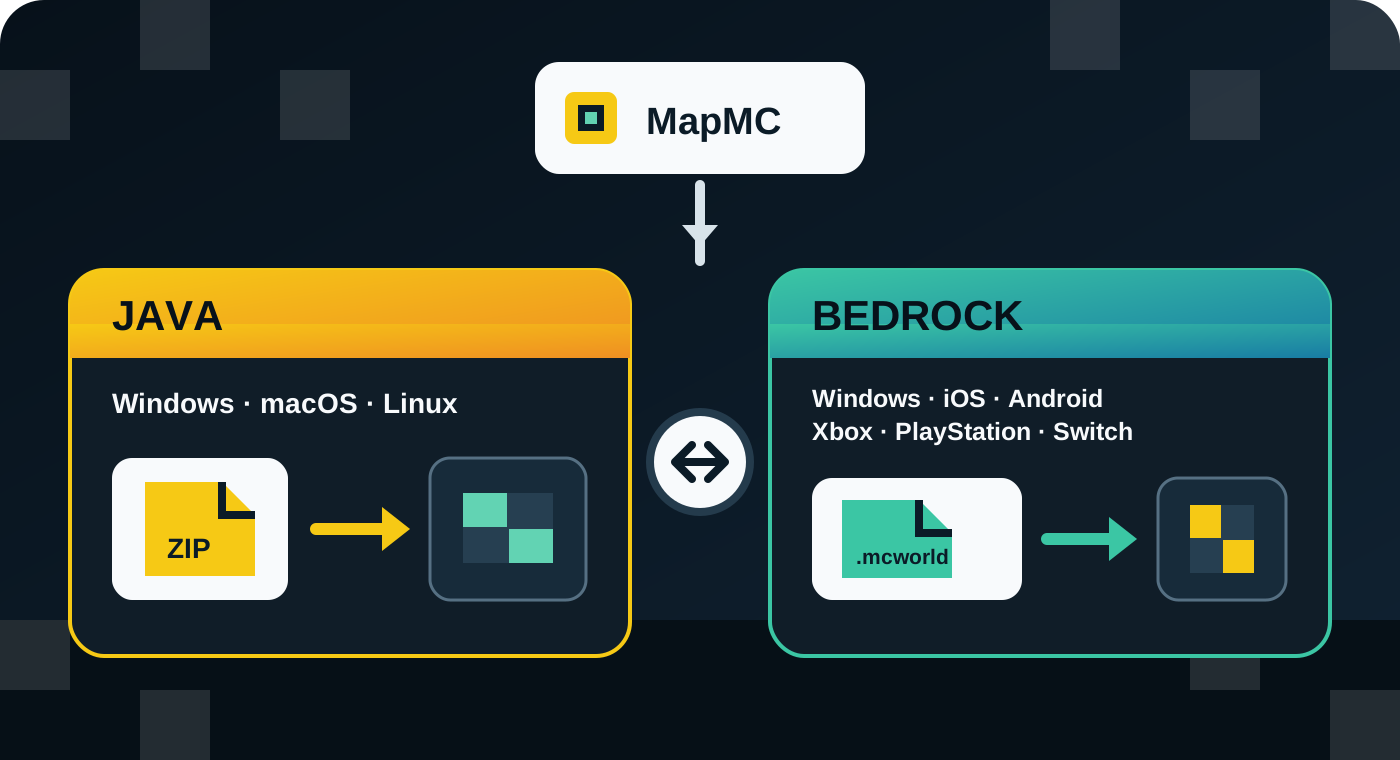
That is the safest answer because MapMC delivers two different packages: a Java world-folder ZIP and a Bedrock .mcworld. Picking the wrong Edition is not fixed by renaming the file.
One-minute Java versus Bedrock decision
| Decision | Choose Java | Choose Bedrock |
|---|---|---|
| Destination device | Windows, macOS, or Linux computer | Windows, iPhone/iPad, Android, Xbox, PlayStation, or Nintendo Switch |
| Friends | Everyone will launch Java Edition | Players use supported Bedrock devices and want Bedrock cross-play |
| MapMC download | Java ZIP; extract once and place the world folder in the active saves directory | Bedrock .mcworld; open the package with Minecraft on a supported device |
| Custom content | Traditional Java mods, modpacks, shaders, and Java server plugins matter most | Controller/touch support, Marketplace content, and Bedrock add-ons matter most |
| Multiplayer destination | Java server or Java Realm | Bedrock server or Bedrock Realm |
| Older game versions | You need a specific Java installation or modpack version | You expect the current stable Bedrock release supported by the device |
If the device and friend group point to different columns, solve that conflict before generating. The world file cannot make a Java client join a Bedrock session or make an unsupported console open a Java save.
Start with the destination device
Use the device that will open the finished world, not necessarily the phone or computer used to visit MapMC. According to Minecraft's current platform information, Java Edition is available on Windows, macOS, and Linux. Bedrock Edition covers Windows plus supported mobile devices and current consoles. Store availability can change, so check the official listing before buying the game for a new platform.
Windows is the only common case where the device alone may not decide. The PC bundle can include both Java and Bedrock, but you still launch one Edition at a time. Open the Minecraft Launcher or title screen and confirm the Edition name. On macOS and Linux, choose Java output. On iPhone, iPad, Android, Xbox, PlayStation, or Switch, choose Bedrock output.
Match the people you want to play with
Java and Bedrock both support multiplayer, but their vanilla clients use different server networks. Java players can play with other Java players across Windows, macOS, and Linux. Bedrock players can use Bedrock cross-play across supported Windows, mobile, and console devices. A Java player and a Bedrock player do not directly join the same vanilla world merely because both worlds represent the same city.
Ask the host or friend group for the exact Edition before generating. Do not ask only “PC or console?” because Windows supports both. If the destination is a Realm, remember that Java Realms and Bedrock Realms are Edition-specific products. Third-party cross-Edition bridges exist, but their setup, compatibility, and data risks are separate from MapMC and are not a reason to choose an otherwise incompatible package.
Compare mods, add-ons, controls, and servers
Choose Java when a specific Java mod, modpack, shader workflow, custom launcher, or Java server is central to the plan. Java's traditional mod ecosystem is broader, but third-party downloads require their own source and safety review. Do not install an unknown executable just to open a world.
Choose Bedrock when native controller or touch support, console/mobile play, easy Bedrock cross-play, or Marketplace/add-on content matters more. Bedrock add-ons are not the same package format as Java mods, and a Java mod cannot be made into a Bedrock add-on by renaming it.
Both Editions can use servers and Realms, but the server software, world storage, and player clients must match the Edition. Decide where the world will live after a local test; do not use the future server as a substitute for confirming the package locally.
Why the MapMC file type matters
Java and Bedrock use different world-storage formats. MapMC packages Java output as a ZIP containing a Java world folder. Work on a copy, extract it once, and find the folder that directly contains level.dat before placing that folder in the active Java saves directory.
MapMC packages Bedrock output as .mcworld. Keep the original, open a copy with Minecraft: Bedrock Edition on a supported device, and let Minecraft import it. Do not unzip it for the normal handoff. A ZIP renamed to .mcworld, or a .mcworld renamed to ZIP, has not been converted.
MapMC does not convert an existing save between Editions, include a Minecraft licence, upload directly to a Realm/server, or make Java and Bedrock multiplayer compatible. If you already generated the wrong Edition, keep the untouched download and stop before paying for or attempting another job until the destination Edition is confirmed.
Common choices
- You play on a Mac or Linux computer: choose Java. Bedrock is not the normal desktop Edition on those platforms.
- You play on iPhone, Android, Xbox, PlayStation, or Switch: choose Bedrock.
- You use Windows and want to join friends on consoles or phones: launch Bedrock and choose MapMC Bedrock
.mcworld. - You use Windows and need a Java modpack or Java-only server: launch Java and choose the MapMC Java ZIP.
- You want to move the same project to a server or Realm later: first open the matching package locally, back it up, and then use the Edition-specific server or Realm guide.
Check these five items before generating
- Launch Minecraft on the destination device and read the Edition name on the launcher or title screen.
- Ask the intended players or server owner whether the session is Java or Bedrock.
- Create and reopen a small local test world to confirm that the game, account, storage, and world list work.
- In MapMC, select Java ZIP or Bedrock
.mcworldto match that confirmed Edition. - Keep the original download after delivery and test an imported copy before adding mods, uploading to a server, or replacing a Realm world.
If any answer is uncertain, use the MapMC platform checklist before paying. After download, use the general import guide for exact Java and Bedrock handling. The goal is not to declare one Edition universally better; it is to deliver the file that your real device, client, and player group can use safely.
Sources and review basis
We use official documentation where available and show the references used for factual claims.