How to open a Minecraft world in a newer version safely
Protect the original, upgrade only a named copy, compare the world before and after, save and reopen it, and restore instead of downgrading if anything changes.
Updated 2026-08-23 · MapMC Editorial
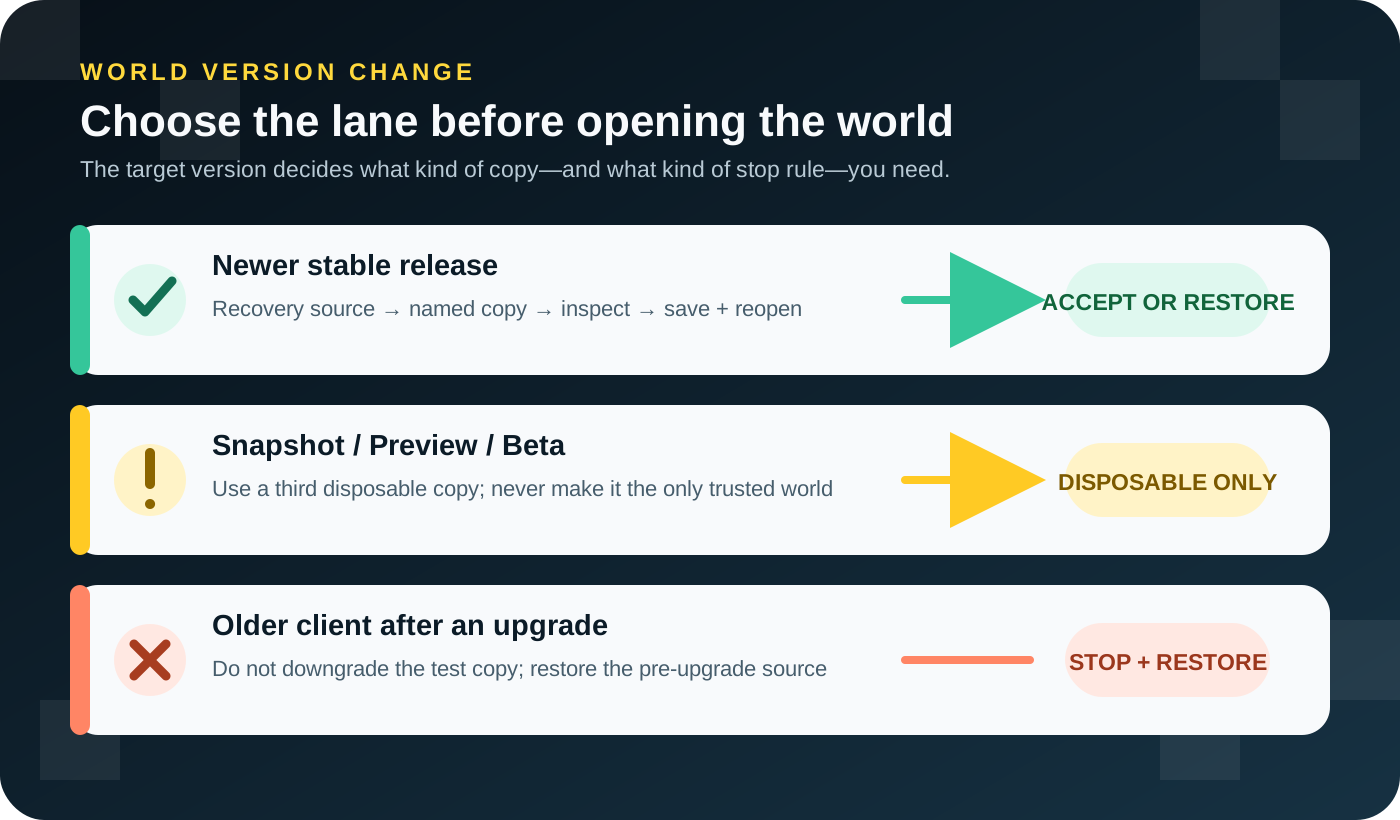
The safe way to open a Minecraft world in a newer version is to treat the change as a reversible acceptance test. Keep an untouched recovery source, record what the world looks like now, let only a clearly named copy enter the newer client, then inspect it, save, quit completely and reopen the same copy. If anything important changes or the second launch fails, stop and restore the pre-upgrade source in its original environment.
This guide explains that decision and verification process. The separate backup and restore guide owns storage locations, exports and restoration details. A dated release page such as Java 26.2 and MapMC support owns facts about one specific Minecraft release.
Decide which version lane you are in
“Newer version” can mean three very different things. Do not open the world until you know which row applies.
| Target you plan to use | Safe decision | What this guide does not promise |
|---|---|---|
| Newer stable Java or Bedrock release | Test a separately named copy and keep a recovery source outside the test | That every world, pack or feature will migrate perfectly |
| Java Snapshot or Bedrock Preview/Beta | Use a third disposable copy only | That development-build changes are stable or reversible |
| Older client after the copy was upgraded | Stop and restore the pre-upgrade source | That opening the upgraded copy in the older client is a rollback |
| Modded world, custom datapacks/add-ons, server or Realm | Check every dependency and use its dedicated migration owner | That a vanilla single-player procedure covers the stack |
Mojang documented a major Java world-format change in 26.1. Worlds needing migration show an upgrade state, and world, player and map data are reorganized by the game. That is a useful concrete reminder: opening a world can write more than a new version label. You should not manually move the documented 26.1 folders to “prepare” the world. Let the target client operate on the test copy.
Record a before-state that can detect damage
A backup without a baseline tells you that files exist, but not whether the upgrade changed the right world. Before copying anything, write down:
- Java or Bedrock Edition, the current game version and the intended stable target version.
- The exact world name and the source file or folder you are protecting.
- Two recognizable landmarks: for example spawn plus a nearby building, bridge, road or terrain edge.
- The expected player position, inventory or Ender Chest, and one ordinary container with known contents.
- Any Nether/End access, filled maps, custom resource/data packs, add-ons, mods, plugins or server software that matter.
- Whether the world already shows missing chunks, load warnings, pack errors or crashes in its current version.
Open the current world one last time only if you know the matching version and it is safe to do so. Save and quit normally. If the world is already broken, diagnose that state before upgrading; otherwise you will not know whether the newer version caused the problem.
Avoid recording private server addresses, account information or screenshots you do not need. A small text note is enough to compare the test copy later.
Make recovery independent of the test copy
The recovery source and the upgrade copy must be two different things. For a MapMC download, keep the original Java ZIP or Bedrock .mcworld unchanged. For an existing local world, create and verify a backup using the backup and restore procedure, then make a separate working copy for this upgrade.
Use names that show purpose and version, such as Harbor City - pre-upgrade and Harbor City - 26.2 test. Store the recovery source outside the active game folder when possible. If both entries look identical in the world list, stop and rename the test copy before opening either one.
Do not count these as independent recovery:
- a shortcut pointing to the same folder;
- a copy made while a world or server is still saving;
- an archive that has never been opened or checked;
- automatic cloud or Realm history that you have not confirmed you can restore;
- the upgraded test copy itself.
The goal is simple: even if the newer client rewrites the test copy, it cannot rewrite the source you need for recovery.
Let only the named copy enter the newer stable release
For Java, place or import the copied world into the installation that runs the chosen stable release. Verify the copy's name before accepting any upgrade prompt. The documented Java 26.1 transition includes an Upgrade and Play state and a progress screen; exact labels can change in later releases, so identify the world rather than relying on one screenshot.
For Bedrock, use a duplicated local world or import a duplicate .mcworld where the platform supports it, then open that copy only after the stable game update is installed. Bedrock storage and copy/export controls vary by device, so use current official storage guidance rather than forcing a desktop filesystem path onto a phone or console.
During the first load:
- do not force-close the game while it is upgrading, loading or saving;
- do not delete “old-looking” folders from a Java world;
- do not enable optional packs, experiments or graphics changes at the same time;
- do not invite normal players to a server or Realm while the migration is still an unverified test.
If the world is large, the first load may take longer, but time alone is not a success signal. Wait for the client to finish, then start the acceptance check.
Compare the copy before accepting it
Reaching the spawn point is only the first check. Compare the upgraded copy with the baseline you recorded.
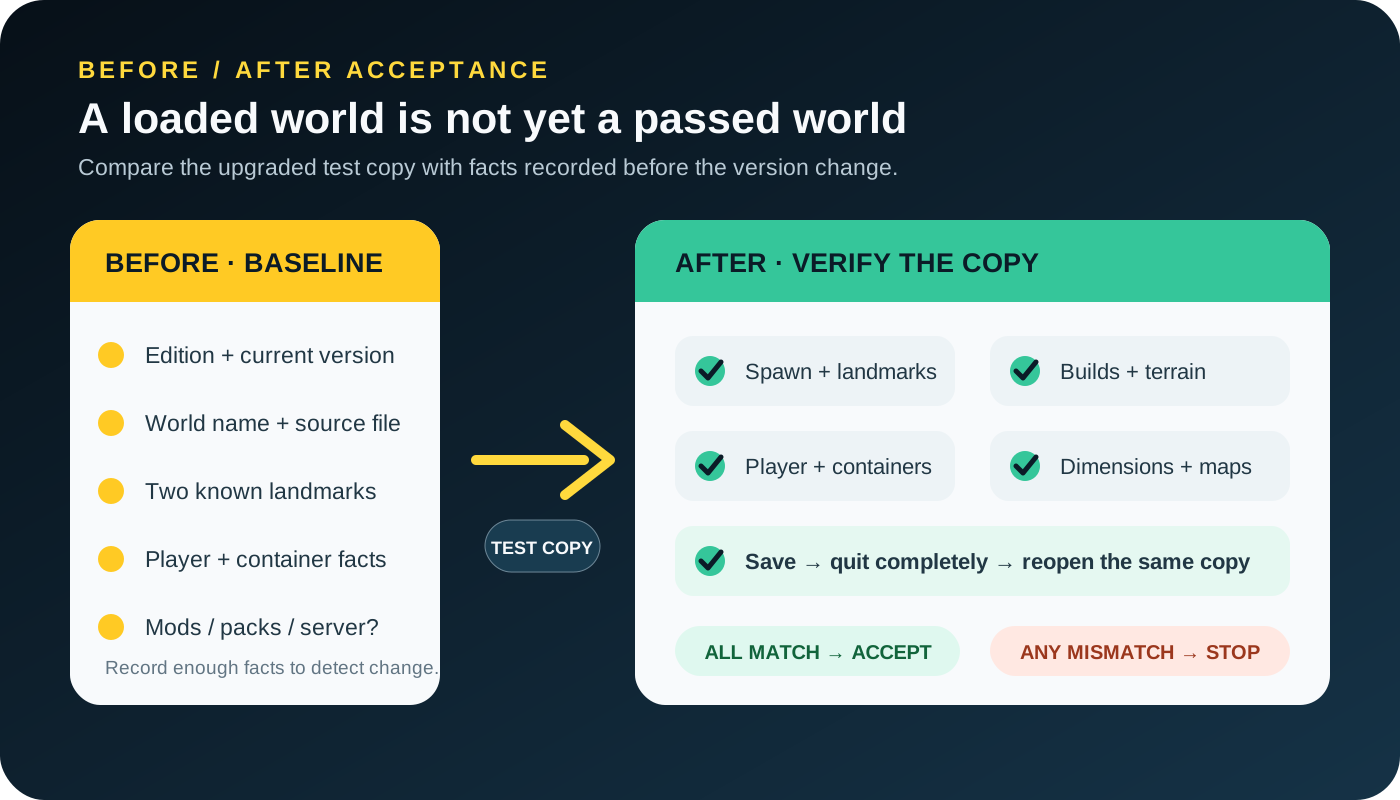
Check the same evidence in a deliberate order:
- Confirm the selected world name and expected spawn or player position.
- Visit both known landmarks and inspect buildings, roads, terrain boundaries and water.
- Check the expected inventory, Ender Chest and ordinary container.
- If relevant, travel through existing Nether and End portals and return.
- Inspect filled maps, item frames, signs, books and content that matters to this world.
- Save and quit to the title screen, close the game completely, restart the same stable version and reopen the same test copy.
- Repeat the identity, landmark and player-data checks after the second launch.
Newly generated chunks may differ from old explored terrain when world generation changes, but this guide does not promise where new features appear. Your acceptance decision is about preserving known world state and proving the upgraded copy can be read again.
Stop on a mismatch and restore—do not downgrade the copy
Stop if the world is missing, the client reports damage or incompatibility, the wrong player appears, inventory or containers are wrong, a known build or terrain section is missing, a dimension fails, maps are blank or incorrect, the game crashes, saving fails, or the copy does not reopen.
Record the exact target version and the visible error. Keep the failed test copy for diagnosis, but do not keep opening it with different versions. Close the newer client and restore the untouched pre-upgrade source using the Edition and version recorded in your baseline.
For the Java 26.1 format transition, Mojang explicitly warned during development that an upgraded world could not be loaded in an older version. The durable recovery rule is therefore restore the old source, not “downgrade” the upgraded copy. Even when a different version appears to open it, newer blocks, entities, registries or world data may not have an older representation.
Only remove or archive the failed copy after the restored source has been opened and checked. Do not merge folders from the upgraded and restored worlds unless you have a specific, evidence-backed recovery procedure.
Apply the rule to a MapMC world
MapMC delivers Java as a ZIP containing a world folder and Bedrock as .mcworld. Preserve that delivered file as the clean source, import or extract a separate test copy, and use the Edition-specific world import guide if the world does not appear.
MapMC's generated Java world currently carries older base metadata that a newer Java client may upgrade. That expected migration does not prove compatibility with a particular client. The Java 26.2 page records the current evidence boundary; this article gives the reusable acceptance procedure.
For a generated map, include these checks:
- spawn, selected-area outline and at least two recognizable real-world landmarks;
- buildings, roads, coastlines, rivers and elevation that matter to the selection;
- the supplied map item if present;
- save, full exit and second launch;
- file size and download identity so a different generation is not mistaken for the test copy.
MapMC does not choose your client, upgrade a mod stack, operate a server or Realm, or guarantee that future Minecraft releases preserve every generated-world behavior.
Keep development builds, mods and servers out of the simple lane
Java Snapshots and Bedrock Preview/Beta are work-in-progress builds. Mojang advises backups and separate worlds, and has documented development builds whose worlds cannot return to previous versions. If you test one, make a third disposable copy. Never promote that copy to the only trusted world.
A modded or server world needs more evidence than this single-player checklist. Record the loader, mods, plugins, datapacks/add-ons, server implementation, Java runtime and external databases. Every dependency that writes world or player data needs explicit support for the target release. Test in a private staging environment and read startup, world-load and shutdown logs before allowing players in.
Realms adds account, slot and hosted-backup state. Do not replace a live slot just to test a version. Prepare the local copy first, then use the dedicated Realms readiness guide and current official owner instructions.
Final safe-upgrade checklist
- Confirm Edition, current version and intended stable target.
- Route Snapshot/Preview, modded, server and Realm cases out of the ordinary lane.
- Record world identity, two landmarks, player/container state, dimensions/maps and existing errors.
- Keep an untouched, verified recovery source outside the test workflow.
- Give the upgrade copy a distinct name and open only that copy.
- Let the target client finish; do not manually reorganize world files.
- Compare the known before-state, then save, quit completely and reopen.
- Accept the copy only if every important check still matches.
- On any mismatch, preserve evidence and restore the pre-upgrade source in its matching environment.
- Never treat opening the upgraded copy in an older client as your rollback plan.
The safest upgrade is not the one with the fewest clicks. It is the one where every write happens to a disposable copy, the result is checked against known facts, and the original remains available if the test fails.
Sources and review basis
We use official documentation where available and show the references used for factual claims.